Reviewed by
You just ran an SEO audit on your WooCommerce store, and the results are hard to ignore: hundreds of errors for missing alt text. It’s a common problem, but it’s also one that costs you traffic and makes your site less accessible.
When product images lack alt text, search engines can’t understand what they show. Google Images essentially ignores those photos. And for customers using screen readers, those images might as well not exist.
In this guide, I’ll show you exactly how to find every image missing alt text in your store and fix them automatically using AI content tools built for WooCommerce.
How I Wrote This Guide
I’m Katrine, a content writer at Rymera Web Co, where I specialize in WooCommerce and ecommerce content for StoreAgent, Visser Labs, and WC Vendors. I’ve been covering ecommerce solutions since 2019.
For this guide, I tested StoreAgent’s Image Alt Tags AI directly on a live demo store called “The Glitch,” working through the Content Insights Dashboard and Media Library firsthand.
My goal is always to give you a practical, honest guide you can follow on your own store.
How Big Is The Missing Alt Text Problem?
According to WebAIM’s 2025 accessibility analysis, over 55.5% of homepages have missing alt text. For ecommerce stores, that number often runs higher because product catalogs grow faster than anyone can keep up with.
The impact goes beyond accessibility warnings. When your product photos lack alt text, they simply don’t appear in those results. You’re invisible to millions of potential customers who search visually.
Why is alt text important for SEO? Search engines rely on text to understand images. Without it, they guess based on file names and surrounding content. And if your file name is something like IMG_5920.jpg, there’s not much to go on.
What Does Missing Alt Text Cost Your Store?
Product image SEO is how shoppers find you.
Every product photo without alt text is a missed opportunity in search. If the image description is blank, Google has nothing to work with, and your product simply won’t show up for shoppers searching visually.
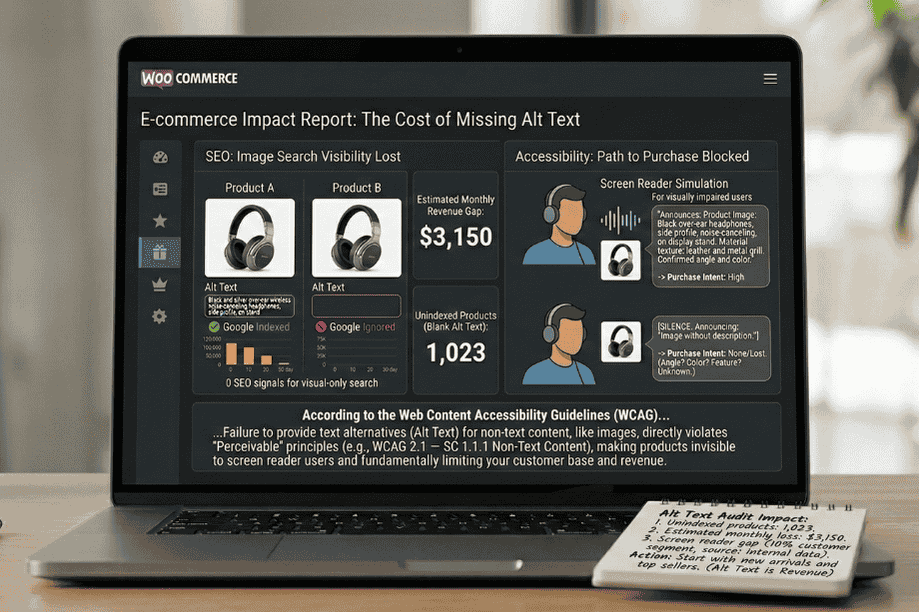
There’s also the accessibility angle. Visually impaired shoppers use screen readers that announce alt text aloud. When that text is missing, they hear nothing. They can’t tell if the image shows the product angle they need or the color they’re considering.
According to the Web Content Accessibility Guidelines (WCAG), providing text alternatives is a fundamental requirement for ecommerce accessibility compliance. Your store should meet that standard.
Why Manually Fixing Alt Text Fails
Here’s the reality for most store owners, and I say this without judgment. You have 300 products. Each product has three to five images. That’s anywhere from 900 to 1,500 photos that need descriptions.
If you spend two minutes writing alt text for each image, you’re looking at 30 to 50 hours of work. That’s a full work week spent typing descriptions. Most people give up after the first 50 images. Honestly, who can blame them?
I’ve noticed that store owners who push through tend to rush and write things like “blue shirt” or “product image.” Generic descriptions don’t help search engines or users. Some even start keyword stuffing: “blue shirt buy cheap shirt men’s blue cotton shirt.” That actually hurts your SEO, and it’s a hard thing to walk back once it’s indexed.
This is why more WooCommerce stores are turning to Image Alt Tags AI Agents. The manual approach simply doesn’t scale. You shouldn’t have to make it work.
How To Find Images Missing Alt Text
Before you fix anything, you need a clear picture of what’s broken. I always recommend running a quick audit first rather than guessing. These are the tools I point store owners to most often:
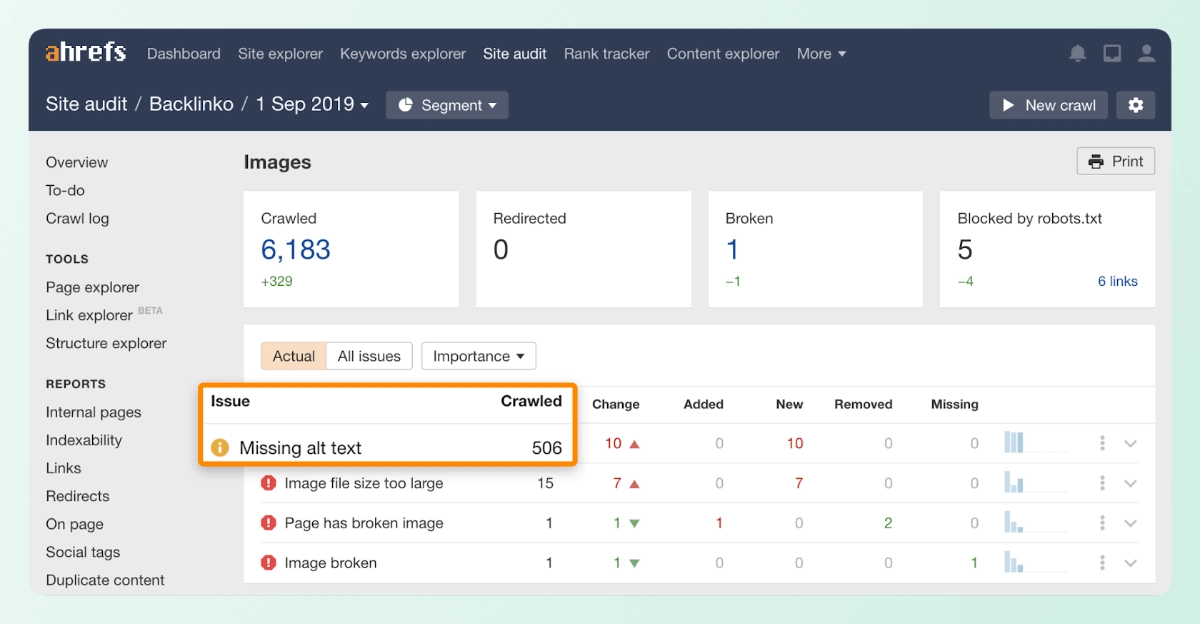
- Ahrefs Webmaster Tools – Free to use after verifying your site. Run a site audit and filter by “missing alt text” under the Issues tab. It gives you a clean list with the image URL and the page it lives on. This is my first choice for most stores.
- Screaming Frog – Free up to 500 URLs. Go to Reports > Images after crawling your site and filter for missing alt text. It’s a bit more technical, but the data is detailed and reliable.
- Yoast – If you already have one of these installed, check the SEO analysis on individual product pages. Both flag missing alt text directly in the WordPress editor, which is useful when you’re updating products one at a time.
- Google Search Console – Doesn’t flag alt text directly, but the Coverage and Enhancement reports can point you toward pages with image indexing issues worth investigating.
Any of these will get you what you need. Once you have your list, the next step is fixing them, and that’s where the manual approach tends to fall apart.
How To Fix Missing Alt Text Automatically
Here’s the workflow I actually use and recommend. You need two things: a way to find every image missing alt text, and a way to fix them without manual work. StoreAgent, a WooCommerce AI plugin, handles both. Once you try it, I think you’ll find it hard to go back to the old way.
Here’s a workflow that actually works long-term. Once you see how fast it is, you’ll wonder why you didn’t do it sooner.
Step 1: Generate alt text as you go
You don’t have to wait for a content audit to stay on top of this. StoreAgent’s alt text generator for WooCommerce lets you generate alt text directly in two places.
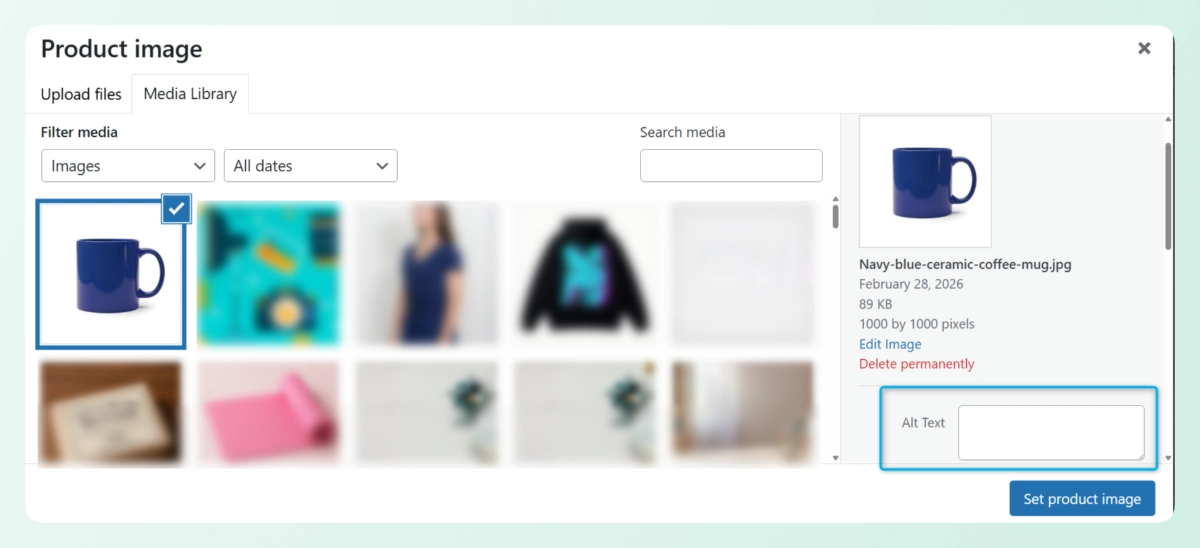
When adding a new product, you can generate alt text for each image right there in the product editor before you even hit publish. In the Media Library, you can go through each image individually and generate alt text on demand.
The AI looks at each image directly, using computer vision to pick up on details a file name never could. I tested this on a ceramic coffee mug in our demo store. The original file name was product-shot-4321.jpg. Not very helpful.
The AI generated this in about three seconds:
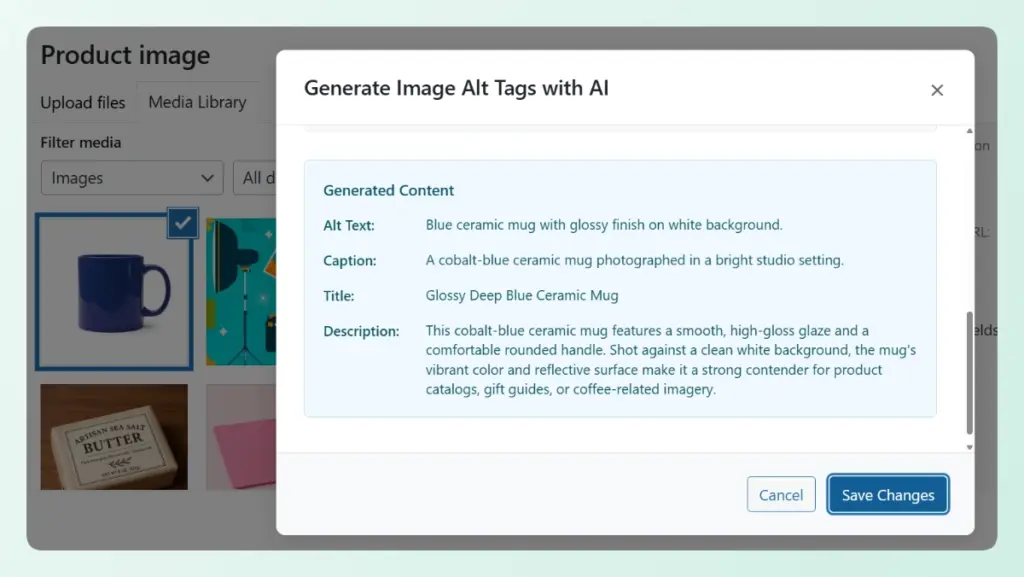
Notice it caught the specific color (blue), the material (ceramic), the finish, and the background color. That’s exactly the level of detail Google needs to surface your images in search results.
According to Google’s official Image SEO best practices, descriptive alt text is one of the most important factors for ranking in image search.
Step 2: Review and publish
Once the AI finishes, each image’s alt text field is filled. I usually spot-check a few across different product categories like apparel, accessories, and home goods. This helps me confirm the AI understands the context.
In my experience, the descriptions are consistently accurate. The computer vision model was trained on millions of ecommerce images, so it recognizes product types and details well.
Save your changes. Your entire media library is now optimized.
For a complete walkthrough with screenshots of each screen, see our AI Image Alt Text Generator guide.
And if you want the full picture on image SEO, including file names, compression, sitemaps, and how alt text fits into the bigger strategy, check out How to Optimize Images for SEO.
This whole process turns what would be weeks of work into about 15 minutes. You stop dreading SEO audits and actually fix the problems they reveal.
What Good Alt Text Looks Like
To get the most from your AI Image Alt Text Generator, it helps to know what great output looks like. These rules are simple, and StoreAgent follows all of them automatically:
- Be specific about the product: color, material, style, and key features
- Keep it under 125 characters when possible
- Never start with “image of” or “picture of”
- Include keywords naturally without stuffing
In my experience, StoreAgent’s AI follows these rules automatically. You don’t need to prompt it or adjust settings. It just writes good alt text every time, which is exactly what a busy store owner needs.
Want to automate more of your store’s content workflow? Check out The Best AI Content Tools In 2026: A Complete Guide.
Conclusion
Missing alt text is one of those problems that hides in plain sight. It won’t crash your store, but it quietly costs you search visibility and shuts out a portion of your customers every single day.
The fix is simpler than most store owners expect, especially when you have the right tool doing the work.
Here’s a quick recap of what we covered:
- How Big Is The Missing Alt Text Problem?
- Why Manually Fixing Alt Text Fails
- How To Find And Fix Missing Alt Text Automatically
- What Good Alt Text Looks Like
If your store has images without alt text right now, you don’t have to spend a week fixing them. StoreAgent’s Image Alt Tags AI handles it for you, one image at a time, with descriptions detailed enough to satisfy both Google and your customers. Give it a try and see how much ground you can cover in a single session.
Frequently Asked Questions
Does WooCommerce add alt text to product images automatically?
No. WooCommerce does not generate alt text automatically. When you upload a product image without filling in the alt attribute, WordPress leaves it blank by default. Some SEO plugins attempt to fill this in using the product title, but the results are generic and not optimized for image search. Alt text needs to be written or generated per image.
Does alt text affect Google Image search rankings?
Yes. Google uses alt text as one of the primary signals to understand what a product image shows. Images without alt text are harder to index and less likely to appear in Google Image search results. According to Google’s image SEO documentation, descriptive alt text directly improves your chances of ranking in image search.
Can duplicate alt text hurt my WooCommerce store’s SEO?
Yes. Using the same alt text across multiple product images, such as repeating “blue shirt” for every variant, can create duplicate content issues. Each image needs a unique description that accurately reflects what it shows, including specific details like color, material, angle, and size.
Does alt text help with voice search?
Yes. Voice assistants and visual search tools pull from image metadata when returning product results. Descriptive alt text makes your products eligible to appear in voice and visual search queries, which is a growing share of ecommerce traffic.
Does adding alt text to existing images affect page speed?
No. Alt text is a plain text attribute added to the image HTML tag. It adds no file weight and has no impact on page load speed. It is one of the few SEO improvements you can make to a product image without any performance trade-off.